

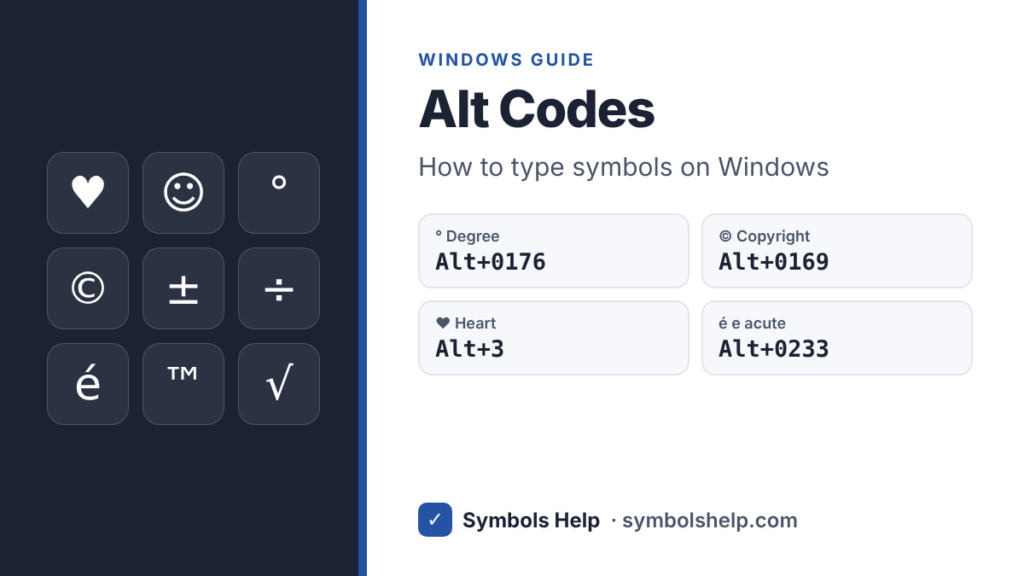
An Alt code is a number you type while holding the Alt key to get a symbol. Hold Alt, type 0176 on the number pad, let go, and you get °. Below are the Alt codes people use most, how to use them on a laptop, and what to do when they do not work.
How to use Alt codes
- Click where you want the symbol to go.
- Turn on Num Lock. On most keyboards a small light shows it is on.
- Hold down the left Alt key.
- Type the code on the number pad on the right side of the keyboard. The number keys above the letters will not work.
- Let go of Alt. The symbol appears.
Most used Alt codes
Here are the symbols people type most often. Where two codes are shown, both work. Click a name to see more versions of that symbol.
| Symbol | Name | Alt code |
|---|---|---|
| ° | Degree | Alt + 0176 or Alt + 248 |
| © | Copyright | Alt + 0169 |
| ® | Registered | Alt + 0174 |
| ™ | Trademark | Alt + 0153 |
| ± | Plus-minus | Alt + 0177 or Alt + 241 |
| × | Multiplication | Alt + 0215 |
| ÷ | Division | Alt + 0247 or Alt + 246 |
| √ | Square root | Alt + 251 |
| ² | Squared | Alt + 0178 or Alt + 253 |
| ½ | One half | Alt + 0189 or Alt + 171 |
| • | Bullet | Alt + 0149 or Alt + 7 |
| — | Em dash | Alt + 0151 |
| – | En dash | Alt + 0150 |
| … | Ellipsis | Alt + 0133 |
| € | Euro | Alt + 0128 |
| £ | Pound | Alt + 0163 or Alt + 156 |
| ¢ | Cent | Alt + 0162 or Alt + 155 |
| é | e with acute | Alt + 0233 or Alt + 130 |
| ñ | n with tilde | Alt + 0241 or Alt + 164 |
| ¿ | Upside down question mark | Alt + 0191 or Alt + 168 |
| ♥ | Heart | Alt + 3 |
| → | Right arrow | Alt + 26 |
| ▲ | Up triangle | Alt + 30 |
| ■ | Black square | Alt + 254 |
Two kinds of Alt codes: with and without a zero
Codes with a zero in front (0128 to 0255) come from the Windows-1252 character set that Windows uses. Codes without the zero come from code page 437, the character set of the first IBM PC from 1981.
That is why the same number can give two different symbols. Alt + 251 gives √, but Alt + 0251 gives û. Alt + 130 gives é, but Alt + 0130 gives a low quote mark ‚. If you get the wrong symbol, check the zero first.
One more detail: the short codes depend on the language set up on your PC. The codes on this page are for US and UK English Windows, which most people use.
Alt codes 1 to 31: small pictures
These low numbers give the picture characters from the original IBM PC. Type them without a zero, for example Alt + 3 for ♥.
| Code | Symbol | Code | Symbol |
|---|---|---|---|
| 1 | ☺ | 2 | ☻ |
| 3 | ♥ | 4 | ♦ |
| 5 | ♣ | 6 | ♠ |
| 7 | • | 8 | ◘ |
| 9 | ○ | 10 | ◙ |
| 11 | ♂ | 12 | ♀ |
| 13 | ♪ | 14 | ♫ |
| 15 | ☼ | 16 | ► |
| 17 | ◄ | 18 | ↕ |
| 19 | ‼ | 20 | ¶ |
| 21 | § | 22 | ▬ |
| 23 | ↨ | 24 | ↑ |
| 25 | ↓ | 26 | → |
| 27 | ← | 28 | ∟ |
| 29 | ↔ | 30 | ▲ |
| 31 | ▼ |
Alt codes for accented letters
Use these to type names and words from Spanish, French, German and other languages. All of them use the zero.
| Small | Alt code | Capital | Alt code |
|---|---|---|---|
| é | Alt + 0233 | É | Alt + 0201 |
| è | Alt + 0232 | È | Alt + 0200 |
| ê | Alt + 0234 | Ê | Alt + 0202 |
| á | Alt + 0225 | Á | Alt + 0193 |
| à | Alt + 0224 | À | Alt + 0192 |
| í | Alt + 0237 | Í | Alt + 0205 |
| ó | Alt + 0243 | Ó | Alt + 0211 |
| ô | Alt + 0244 | Ô | Alt + 0212 |
| ú | Alt + 0250 | Ú | Alt + 0218 |
| ñ | Alt + 0241 | Ñ | Alt + 0209 |
| ü | Alt + 0252 | Ü | Alt + 0220 |
| ö | Alt + 0246 | Ö | Alt + 0214 |
| ä | Alt + 0228 | Ä | Alt + 0196 |
| ç | Alt + 0231 | Ç | Alt + 0199 |
Alt codes for math and money
| Symbol | Name | Alt code |
|---|---|---|
| ± | Plus-minus | Alt + 0177 or Alt + 241 |
| × | Multiplication | Alt + 0215 |
| ÷ | Division | Alt + 0247 or Alt + 246 |
| ° | Degree | Alt + 0176 or Alt + 248 |
| ² | Superscript two | Alt + 0178 or Alt + 253 |
| ³ | Superscript three | Alt + 0179 |
| ½ | One half | Alt + 0189 or Alt + 171 |
| ¼ | One quarter | Alt + 0188 or Alt + 172 |
| ¾ | Three quarters | Alt + 0190 |
| µ | Micro | Alt + 0181 or Alt + 230 |
| √ | Square root | Alt + 251 |
| ∞ | Infinity | Alt + 236 |
| ≈ | Almost equal | Alt + 247 |
| ≤ | Less than or equal | Alt + 243 |
| ≥ | Greater than or equal | Alt + 242 |
| π | Pi | Alt + 227 |
| € | Euro | Alt + 0128 |
| £ | Pound | Alt + 0163 or Alt + 156 |
| ¢ | Cent | Alt + 0162 or Alt + 155 |
| ¥ | Yen | Alt + 0165 or Alt + 157 |
Alt codes for dashes, quotes and other punctuation
| Symbol | Name | Alt code |
|---|---|---|
| — | Em dash | Alt + 0151 |
| – | En dash | Alt + 0150 |
| … | Ellipsis | Alt + 0133 |
| • | Bullet | Alt + 0149 or Alt + 7 |
| ‘ | Left single quote | Alt + 0145 |
| ’ | Right single quote (apostrophe) | Alt + 0146 |
| “ | Left double quote | Alt + 0147 |
| ” | Right double quote | Alt + 0148 |
| « | Left angle quote | Alt + 0171 or Alt + 174 |
| » | Right angle quote | Alt + 0187 or Alt + 175 |
| ¿ | Upside down question mark | Alt + 0191 or Alt + 168 |
| ¡ | Upside down exclamation mark | Alt + 0161 or Alt + 173 |
| § | Section sign | Alt + 0167 or Alt + 21 |
| ¶ | Paragraph sign | Alt + 0182 or Alt + 20 |
| † | Dagger | Alt + 0134 |
The em dash (Alt + 0151) is the long dash. The en dash (Alt + 0150) is a bit shorter and is used for ranges, like pages 10–20. The curly quotes and the apostrophe are the ones Word puts in for you when you type straight quotes.
How to use Alt codes on a laptop without a number pad
Use the built-in number pad
Many laptops have small numbers printed on the letter keys around J, K and L. Press Fn + Num Lock (on some models Fn + ScrLk) to switch them on, then hold Alt and type the code on those keys. Switch it off again the same way when you are done.
Use the emoji and symbol panel
Press Windows key + . (period) and click the Ω tab. You can pick symbols from lists there, with no codes to remember.
Use Character Map
Type “Character Map” in the Start menu search and open it. Click a symbol, click Select, then Copy, and paste it where you need it.
Use the On-Screen Keyboard
Press Windows key + Ctrl + O. Click Options, tick “Turn on numeric key pad” and click OK. You now have a number pad on screen that you can use with Alt codes.
Copy and paste
The quickest way of all: copy the symbol from our symbols copy and paste tool and paste it with Ctrl + V.
Alt codes not working? Check these
- Num Lock is off. Turn it on and try again.
- You typed the numbers on the row above the letters. Alt codes only work on the number pad.
- The zero is wrong. Alt + 251 and Alt + 0251 are different symbols.
- You are holding the right Alt key. On some keyboards it works as AltGr, so use the left Alt key.
- The program does not support Alt codes. Try the same code in Notepad, or use Windows key + . instead.
- You see an empty box instead of the symbol. The font is missing that character. Our square symbols page explains these boxes.
Unicode codes in Word: Alt + X
Word has its own trick that works for every symbol, not only the 255 old ones. Type the Unicode code and press Alt + X right after it. For example, type 2713 and press Alt + X to get a check mark ✓.
It also works the other way. Put the cursor right after any symbol and press Alt + X, and Word shows you its code. Press Alt + X again to switch back.
What about Mac?
Macs do not use Alt codes. They use the Option key instead. A few common ones on a US keyboard:
| Symbol | Mac shortcut |
|---|---|
| © | Option + G |
| ® | Option + R |
| ™ | Option + 2 |
| ° | Option + Shift + 8 |
| • | Option + 8 |
| ± | Option + Shift + = |
| ≠ | Option + = |
| ÷ | Option + / |
| √ | Option + V |
| ∞ | Option + 5 |
| … | Option + ; |
For anything else, press Control + Command + Space on a Mac and search for the symbol by name.
Frequently asked questions
What is the Alt code for the degree symbol?
Alt + 0176 or Alt + 248. Both give °. Our degree symbol page also has °C and °F ready to copy.
Do Alt codes work in Google Docs and web browsers?
Yes. On Windows, Alt codes work in most programs, including Chrome, Edge, Google Docs, Word, Excel and Notepad.
Do Alt codes work on a Chromebook?
No. On a Chromebook, press Ctrl + Shift + U, type the Unicode code (for example 00b0 for °), then press Space or Enter.
Why do I get a different symbol than the one in the list?
Check whether the code has a zero in front. If it still does not match, your Windows may use a different language setting for the short codes. The codes with a zero work the same everywhere.
What is the Alt code for a heart?
Alt + 3 gives ♥. For more hearts, like ♡ and ❤, see our heart symbol page.
Sources: Microsoft’s guide to ASCII and Unicode symbols, and the code page 437 and Windows-1252 character tables. Every code on this page was checked against those tables. Written by Muhammad Ilyas, updated October 2026.