

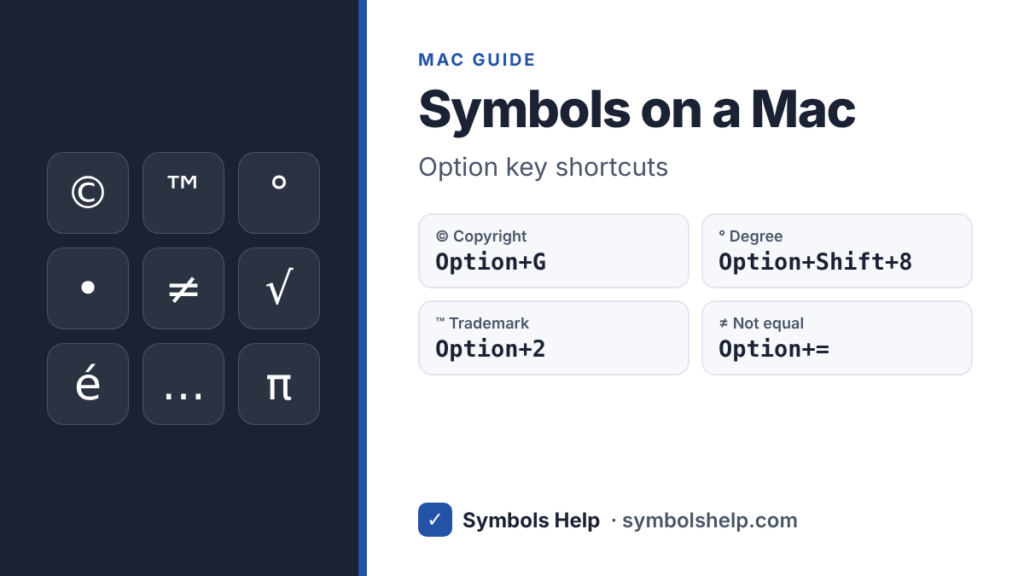
On a Mac you type most symbols with the Option key. Hold Option and press a letter or number: Option + G gives ©, Option + 2 gives ™ and Option + Shift + 8 gives °. For anything else, press Control + Command + Space to open the Character Viewer and search by name.
How Option key shortcuts work
Hold down Option (it may say alt on older keyboards), press the key, then let go. Some symbols also need Shift, so you hold Option and Shift together. The shortcuts below are for the standard US (ABC) keyboard layout, which most Macs in the US, Canada and Australia use. On other layouts some keys give different symbols.
Common Mac symbol shortcuts
| Symbol | Name | Mac shortcut |
|---|---|---|
| © | Copyright | Option + G |
| ® | Registered | Option + R |
| ™ | Trademark | Option + 2 |
| ° | Degree | Option + Shift + 8 |
| • | Bullet | Option + 8 |
| · | Middle dot | Option + Shift + 9 |
| … | Ellipsis | Option + ; |
| – | En dash | Option + – |
| — | Em dash | Option + Shift + – |
| € | Euro | Option + Shift + 2 |
| £ | Pound | Option + 3 |
| ¢ | Cent | Option + 4 |
| ¥ | Yen | Option + Y |
| ◊ | Lozenge | Option + Shift + V |
Math symbols on a Mac
| Symbol | Name | Mac shortcut |
|---|---|---|
| ± | Plus-minus | Option + Shift + = |
| ≠ | Not equal | Option + = |
| ≈ | Almost equal | Option + X |
| ≤ | Less than or equal | Option + , |
| ≥ | Greater than or equal | Option + . |
| ÷ | Division | Option + / |
| √ | Square root | Option + V |
| ∞ | Infinity | Option + 5 |
| π | Pi | Option + P |
| ∑ | Sum | Option + W |
| ∏ | Product | Option + Shift + P |
| ∫ | Integral | Option + B |
| ∂ | Partial derivative | Option + D |
| ∆ | Increment (delta) | Option + J |
| µ | Micro | Option + M |
| Ω | Ohm | Option + Z |
| ¬ | Not | Option + L |
| ‰ | Per mille | Option + Shift + R |
Need more? Our math symbols page lists 63 of them with their meanings.
Quotes and punctuation on a Mac
| Symbol | Name | Mac shortcut |
|---|---|---|
| “ ” | Curly double quotes | Option + [ and Option + Shift + [ |
| ‘ ’ | Curly single quotes | Option + ] and Option + Shift + ] |
| « » | Angle quotes | Option + \ and Option + Shift + \ |
| ¿ | Upside down question mark | Option + Shift + / |
| ¡ | Upside down exclamation mark | Option + 1 |
| § | Section sign | Option + 6 |
| ¶ | Paragraph sign | Option + 7 |
| † | Dagger | Option + T |
| ‡ | Double dagger | Option + Shift + 7 |
How to type accented letters on a Mac
There are two easy ways. The first: press and hold a letter key, like e. A small menu pops up with é è ê ë and more. Click one, or press the number shown under it.
The second way is faster once you know it. Press an Option combination first, let go, then type the letter. The accent lands on that letter.
| Accent | Press | Then | Result |
|---|---|---|---|
| Acute | Option + E | e | é |
| Grave | Option + ` | e | è |
| Circumflex | Option + I | e | ê |
| Umlaut | Option + U | u | ü |
| Tilde | Option + N | n | ñ |
For a capital letter, hold Shift when you type the letter, for example Option + E and then Shift + E gives É. A few letters have their own key: Option + S gives ß, Option + C gives ç, Option + O gives ø and Option + A gives å.
Use the Character Viewer for any symbol
Press Control + Command + Space (on newer Macs you can also press the Globe key or fn + E). A small window opens with emoji and symbols. Type a name like “heart”, “check” or “arrow” in the search box and click the symbol to insert it.
Click the small expand icon in the corner of that window to switch to the full Character Viewer. There you can browse by category, see each symbol’s name and code, and add the ones you use often to Favorites.
See every Option symbol with the Keyboard Viewer
Not sure what a key does with Option? Open the on-screen keyboard: go to System Settings > Accessibility > Keyboard and turn on the Accessibility Keyboard. Hold Option, or Option and Shift, and the keys change to show the symbols you would get.
Type any symbol by its code with Unicode Hex Input
This is the Mac version of the Windows trick with codes. It takes one minute to set up:
- Open System Settings > Keyboard and click Edit next to Input Sources.
- Click the + button, choose Others, select Unicode Hex Input and click Add.
- Switch to it from the input menu in the menu bar.
- Hold Option and type the 4-digit code. For example, Option + 2665 gives ♥ and Option + 2713 gives ✓.
You can find the code for any symbol on our symbol pages, like the heart symbol (2665) or the check mark (2713). Switch back to your normal keyboard when you are done.
Make your own shortcuts with Text Replacements
If you use one symbol a lot, let your Mac type it for you. Go to System Settings > Keyboard > Text Replacements and click +. In “Replace” type a short code like :deg and in “With” paste °. Now typing :deg turns into ° in most apps. If you use an iPhone with the same Apple ID, the shortcut can sync to it too.
Two things that trip people up
- Option + 0 gives º, the masculine ordinal used in Spanish (1º). It looks like the degree sign but sits higher and is underlined in some fonts. For temperatures and angles, use Option + Shift + 8 for °.
- Option + Shift + K types the Apple logo (U+F8FF). It only shows on Apple devices. On Windows and Android people see an empty box or nothing, so do not use it in emails or on websites.
Frequently asked questions
How do I type the degree symbol on a Mac?
Press Option + Shift + 8 to get °. See our degree symbol page for °C and °F.
Can I use Windows Alt codes on a Mac?
No. Alt codes like Alt + 0169 only work on Windows. On a Mac, use the Option shortcuts on this page instead. If you also use Windows, our Alt codes guide has the Windows side.
Why does my Option shortcut type something different?
Your Mac probably uses a different keyboard layout, like British or German. Check the input menu in the menu bar. On the British layout, for example, Option + 3 gives # instead of £, and £ is on Shift + 3.
How do I type a heart or a check mark on a Mac?
Press Control + Command + Space and search for “heart” or “check”, or copy them from our symbol pages. There is no Option shortcut for ♥ or ✓.
Sources: Apple Support, Enter characters with accent marks on Mac, and the standard US keyboard layout in macOS. Written by Muhammad Ilyas, updated October 2026.