

To insert a symbol in Google Docs, click where you want it, then go to Insert > Symbols > Special characters. Search for the symbol by name, like “arrow” or “check”, and click it. Below are four other ways that are often faster, plus a few tricks for bullets, math and phones.
Method 1: Insert > Symbols > Special characters
This menu has almost every Unicode symbol, and it works in Google Slides too.
- Click in your document where the symbol should go.
- Open Insert > Symbols > Special characters.
- Type a word in the search box, like “heart”, “degree” or “arrow”.
- Click the symbol you want. The window stays open, so you can add more.
- Close the window when you are done.
There are two more ways to search in that window. If you know the Unicode number, type it without the U+, for example 2713 for ✓. If you do not know the name, draw the shape with your mouse in the box on the right, and Docs shows symbols that look like it. Every symbol page on our site lists the Unicode number, so the first way is quick once you have it.
Method 2: Copy and paste
If you use the same symbols again and again, copying is often the fastest way. Open our symbol finder, click a symbol to copy it, and press Ctrl + V (or Command + V on a Mac) in your document.
These pages are handy for school and work documents: check marks ✓, arrows →, bullet points •, degree ° and math symbols.
If the pasted symbol looks too big or uses the wrong font, paste with Ctrl + Shift + V instead. That pastes plain text, so the symbol takes on the font of your document.
Method 3: Let Docs type it for you (substitutions)
Google Docs can turn a short code into a symbol as you type. It already does this for a few, like (c) into © and 1/2 into ½. You can add your own in Tools > Preferences > Substitutions. Make sure “Automatic substitution” is ticked, type your code under Replace, paste the symbol under With, and click OK.
Here are some handy codes. Starting each one with a semicolon stops them from firing by accident in normal words.
| Replace | With |
|---|---|
;check | ✓ |
;x | ✗ |
;deg | ° |
;arrow | → |
;heart | ♥ |
;star | ★ |
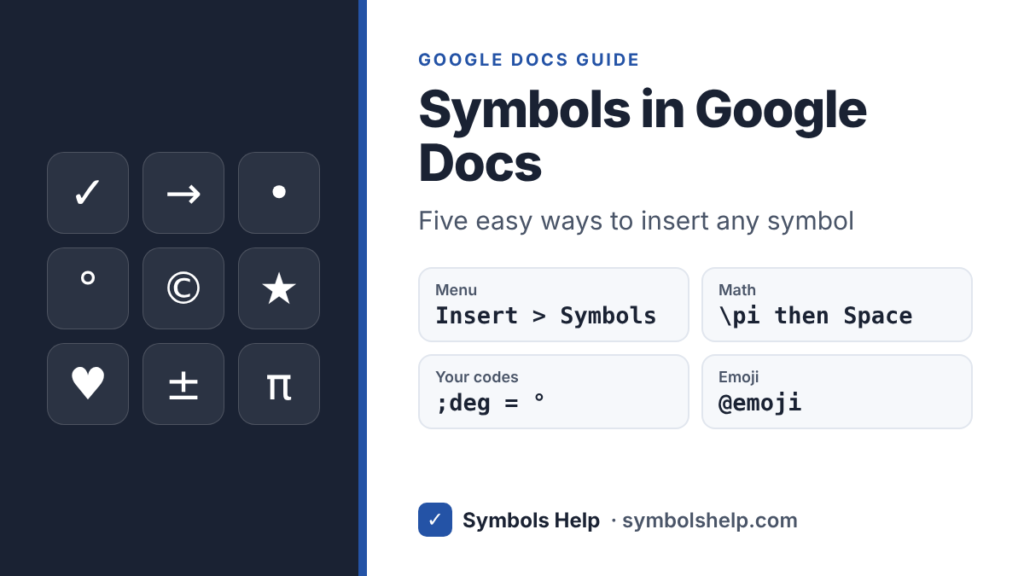
Type the code and press Space, and the symbol appears. If a substitution happens when you did not want it, press Ctrl + Z right away to undo it. Your substitutions are saved to your Google account, so they work in every document you open on a computer.
Method 4: The equation editor for math
For math, go to Insert > Symbols > Equation. Inside the equation box, type a backslash, a name and a space, and Docs swaps it for the symbol.
| Type | Result |
|---|---|
\pi | π |
\infty | ∞ |
\times | × |
\div | ÷ |
\pm | ± |
\neq | ≠ |
\leq | ≤ |
\geq | ≥ |
\sqrt | √ |
\sum | ∑ |
\alpha | α |
\rightarrow | → |
Equations use their own math font, so they can look a little different from your normal text. For a single symbol in a sentence, Method 1 or 2 usually looks neater. Our multiplication sign, division symbol and infinity symbol pages explain when to use each sign.
Method 5: Keyboard shortcuts you already know
Google Docs runs in your browser, so the shortcuts of your computer work there too.
- On Windows, Alt codes work. Hold Alt and type 0176 on the number pad for °, or 0169 for ©. Our Alt Code Finder lists all of them.
- On a Mac, Option shortcuts work. Option + G gives © and Option + Shift + 8 gives °. See our Mac symbols guide.
- On a Chromebook, press Ctrl + Shift + U, type the Unicode number, then press Space.
Use a symbol as a bullet point
You can turn any symbol into a list bullet. Make a bulleted list, then right-click one of the bullets and choose More bullets. The special characters window opens, and the symbol you pick becomes the bullet for that list. Arrows ➤, check marks ✓ and stars ★ all work well.
If you want boxes people can tick, you do not need a symbol at all. Use the checklist list instead, under Format > Bullets & numbering > Checklist.
Superscript and subscript
To raise text, like the 2 in m², select it and press Ctrl + . (period). To lower it, like the 2 in H₂O, press Ctrl + , (comma). On a Mac, use Command instead of Ctrl. You can also copy ready-made characters like ² ³ and ₂, which keep their shape when you paste them anywhere else.
Emojis in Google Docs
Type @emoji and press Enter to open the emoji picker, or type a colon and a word, like :heart, and pick from the list. You can also use Insert > Symbols > Emoji. If the colon search gets in your way, turn it off in Tools > Preferences.
On a phone or tablet
The Special characters window is only on a computer. In the Google Docs app on a phone, use your phone’s keyboard: hold a letter to get accents, open the symbols page of the keyboard, or use the emoji keyboard. For anything else, copy the symbol from our site and paste it into the app.
Google Sheets and Google Slides
Google Slides has the same Insert > Symbols > Special characters menu as Docs. Google Sheets does not, so copy the symbol and paste it into a cell, or use a formula with the decimal Unicode number: =CHAR(10003) gives ✓ and =CHAR(9733) gives ★.
If a symbol shows up as an empty box
If you see an empty box or a question mark instead of the symbol, the font you picked has no drawing for it. Select the symbol and change its font to Arial. If that does not help, go to the font menu, choose More fonts and add Noto Sans Symbols 2, which covers most symbols.
Frequently asked questions
Where is the special characters menu in Google Docs?
It is under Insert > Symbols > Special characters. In older versions of Docs it sat right under Insert, so some guides still show it there.
How do I insert a check mark in Google Docs?
Open Insert > Symbols > Special characters and search for “check”, or copy ✓ from our check mark page. For a list with boxes to tick, use Format > Bullets & numbering > Checklist.
How do I type the degree symbol in Google Docs?
On Windows, press Alt + 0176. On a Mac, press Option + Shift + 8. Or add a substitution so that ;deg turns into ° every time.
Can I make my own symbol shortcuts in Google Docs?
Yes. Go to Tools > Preferences > Substitutions and add a code and the symbol it should turn into, as shown in Method 3.
Does this work in Google Slides and Sheets?
Slides has the same special characters menu. Sheets does not, but you can paste symbols into cells or use the CHAR formula.
Sources: Google Docs Editors Help, Insert emojis and special characters and Use equations in a document. Written by Muhammad Ilyas, updated October 2026.